How to Add a Person to a Photo Without Photoshop (Beginner-Friendly)
Learn how to add a person to a photo prompt easily. Beginner tips, phone methods, and ai tools to add a person to a photo prompt without Photoshop.
Adding someone into a photo has never been easier. With the right add a person to a photo prompt, you can blend a new person into any scene using simple tools on iPhone, Android, or online editors no Photoshop skills needed. This beginner-friendly guide walks you through clear steps to create natural, realistic results, whether you’re adjusting lighting, shadows, or positioning for a perfect match.
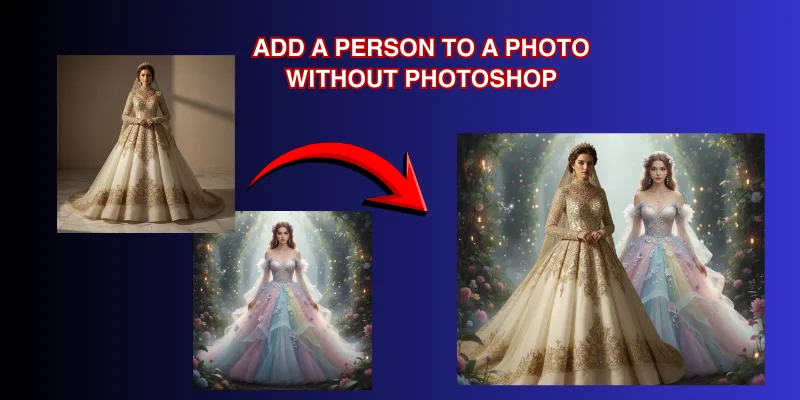
Method 1— Use an AI Editor With Prompts (Fastest Option)
Using an AI editor is the easiest way to add a person to a photo without needing Photoshop or advanced editing skills. These tools work online, on mobile, and even inside Google Gemini. You just upload two images the main photo and the person you want to place into it. The AI reads your add a person to a photo prompt, detects the person automatically, and blends them naturally into the background.
Modern AI editors adjust lighting, shadows, colors, and perspective, so the added person looks like they were always part of the scene. No manual cutting, no layers, and no complex tools.
How to add a person to a photo without photoshop
Step 1: Upload Your Main Photo Choose the image where you want to place the person. This could be a group picture, vacation shot, or any background.
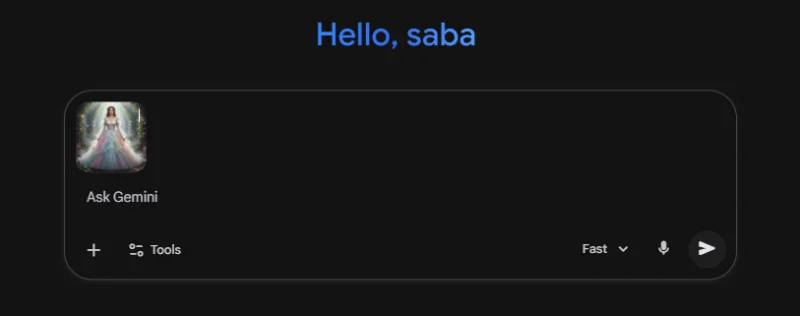
Step 2: Upload the Person’s Photo Pick a clear image of the person you want to add. Full-body or half-body images work best.
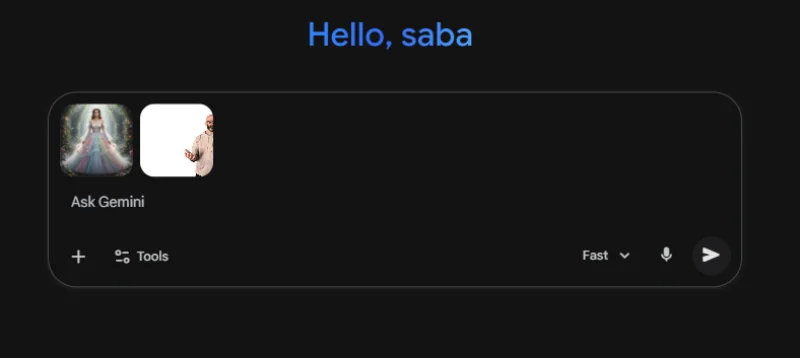
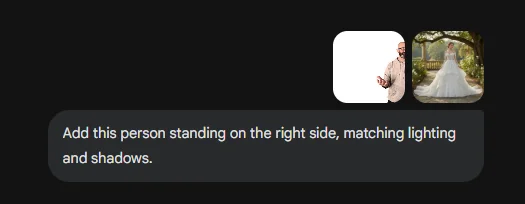
Step 3: Write a Simple Prompt Use an add a person to a photo prompt, for example: "Add this person standing on the right side, matching lighting and shadows."
Step 4: AI Auto-Detects the Person The editor separates the person from their background automatically.
Step 5: AI Blends Them Into the Scene The tool adjusts size, angle, brightness, and shadows to make the person look real.
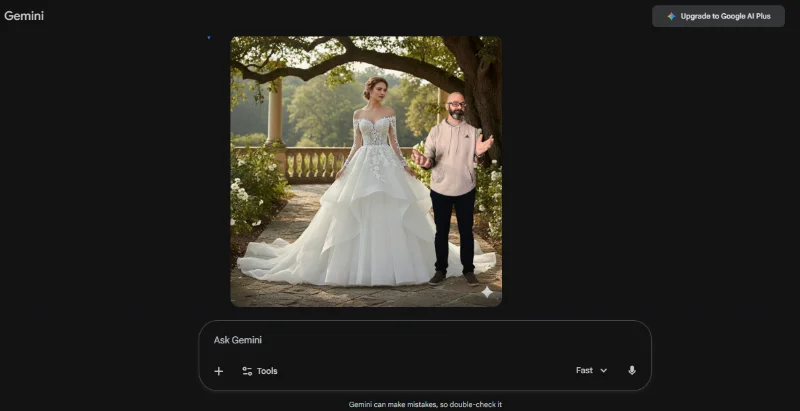
Step 6: Download or Share Save the final edited photo or share it directly from the tool.
Method 2— Use Background Removal + Paste
Removing backgrounds before pasting images produces much cleaner, professional-looking composites. Whether you’re creating memes, product visuals, or creative designs, starting with a transparent background makes all the difference.
Why PixPretty?
- 1-click cutout
- Exports clean PNG
- Perfect for realistic or meme-style composites
Easily remove backgrounds from photos in seconds using PixPretty’s AI-powered background remover. It handles tricky edges like hair strands or shadows with precision, giving you sharp, professional-quality cutouts all free and ready to download.
PixPretty Ai works for everyone from eCommerce sellers creating product photos, to creators designing custom graphics, to individuals polishing social media images. With clean backgrounds and precise AI cutouts, adding a person to a photo or creating composites has never been easier.
How to add a person to a photo using pixpretty ai
Step 1: Upload
Drag, paste (Ctrl + V), or use a URL to upload your image. Supported formats include JPG, JPEG, PNG, and WebP.
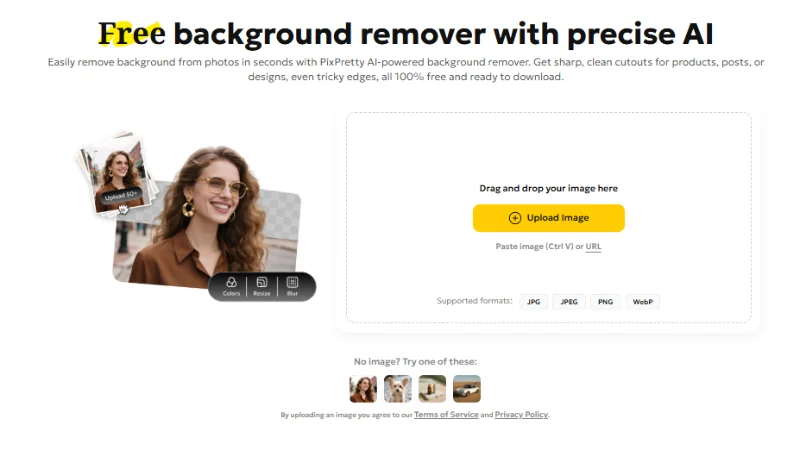
Step 2: Remove & Edit
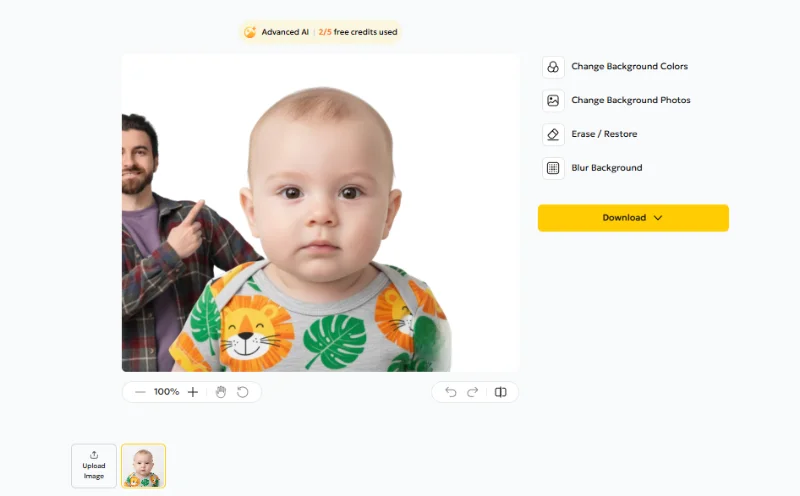
The background is automatically removed. You can further edit, replace, or enhance the image with colors, stock photos, or custom visuals. Click on Go to Editor.

Step 3: Download
Now upload the image you want in background. Save your clean, polished photo in high resolution, ready for any project.
Method 3— Use Mobile Apps (iPhone/Android)
If you want a quick and easy way to add a person to a photo on the go, mobile apps are a convenient option. These apps allow you to layer images by removing backgrounds manually or using built-in cutout tools. While they are simpler to use than AI-powered desktop tools, they are generally less precise and may require some manual adjustment.
Free Apps to Try:
- Snapseed (iOS & Android): Offers basic layering, cropping, and blending tools.
- PicsArt (iOS & Android): Lets you cut out subjects, add layers, and apply creative effects.
- PhotoLayers (Android): Designed for easy background removal and multi-layer photo editing.
- Superimpose (iOS): Allows manual cutouts and layering for realistic composites.
How to add a person to iphone photos:
1.Open App & Upload Images: Start with the base photo and the person you want to add.
2.Remove Background: Use the app’s cutout or eraser tool to isolate the person from their original background.
3.Layer the Person: Place the cutout onto your base image. Adjust size, position, and orientation for a natural look.
4.Blend & Edit: Use blur, brightness, or shadow tools to integrate the person with the background.
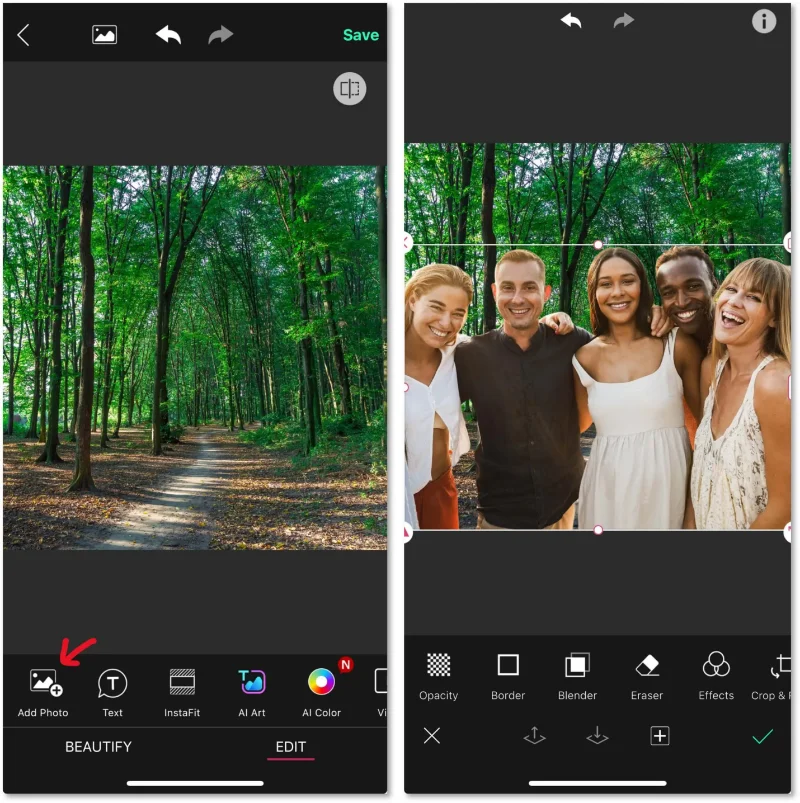
5.Save & Share: Once satisfied, export the final composite image in high resolution.
Tip: For best results, choose images with clear edges and simple backgrounds. Mobile apps are great for quick edits, social media posts, and casual composites, but for professional or highly detailed work, AI-based desktop tools are more precise.
Best “Add a Person to a Photo” AI Prompts (Copy & Paste)
| Basic Prompts | Add a Person to a Photo (AI Prompt Copy Paste) | Copy |
|
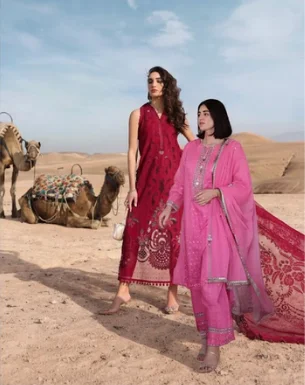
"Add the person from the second photo into the first image. Keep face, body size, and proportions natural." | Copy |
|
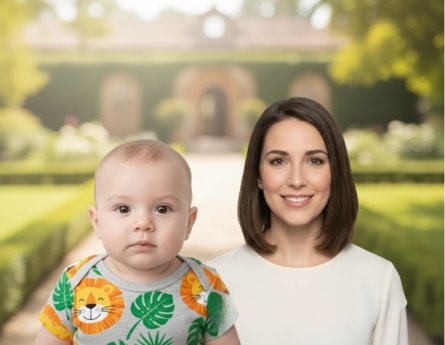
"Place the person on the right side of the group, matching light, shadows, and overall tone." | Copy |

|
"Insert the person into the scene without changing the background. Keep skin and outfit details sharp." | Copy |

|
"Add this person next to the main subject. Keep the pose and expression exactly the same." | Copy |
|
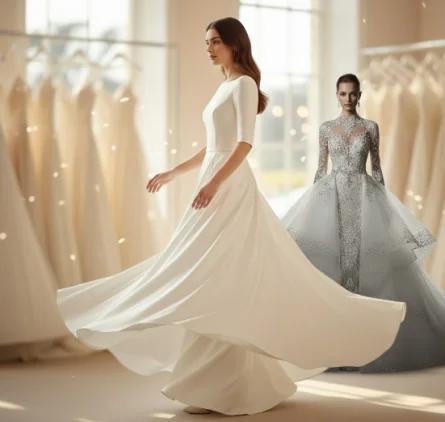
"Merge the person into the image and make sure colors, shadows, and sharpness match the original photo." | Copy |
| Realistic / Photojournalistic Prompts | Add a Person to a Photo (AI Prompt Copy Paste) | Copy |
|
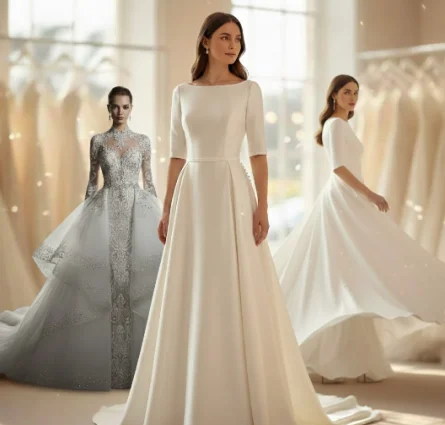
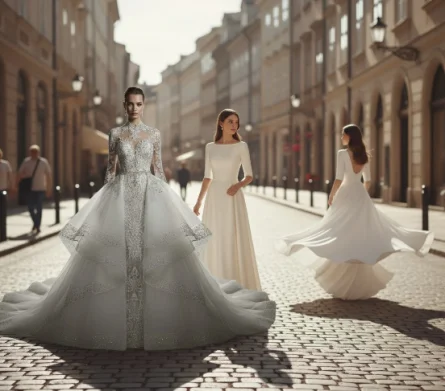
Blend the subject naturally into the crowd. Match ambient lighting, motion blur, depth of field, and overall color mood to make the addition unnoticeable | Copy |
|
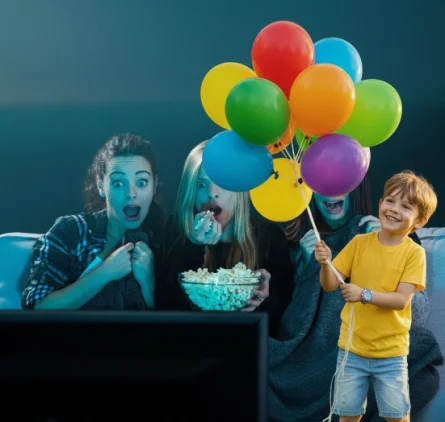
Place the person into the street scene with correct shadow angles, brightness balance, and realistic environmental reflections. | Copy |
|
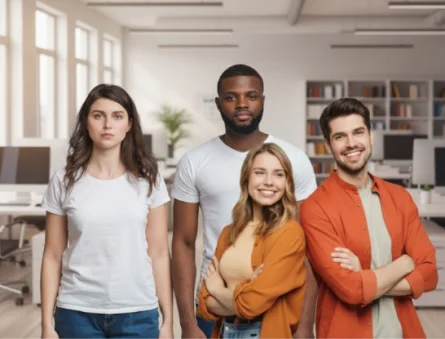
Add the person near the group with a documentary-style finish. Match color grading, avoid beautifying filters, keep natural skin texture, and preserve the realism of the environment. | Copy |
|
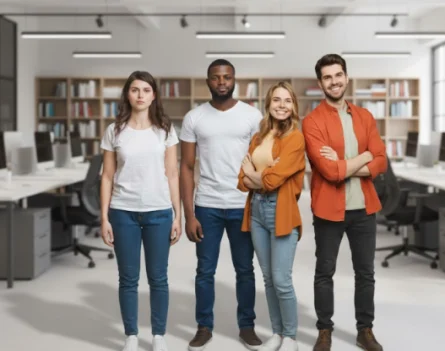
Insert the subject into the office background. Match indoor lighting temperature (usually warm to neutral), adjust edge shadows on nearby objects, and blend white balance and contrast for a true-to-life result. | Copy |
|
Blend the person into the frame as if captured with the same camera settings consistent noise levels, angle, focal length, edge sharpness, and natural environmental shadows. | Copy |
| Creative Prompts | Add a Person to a Photo (AI Prompt Copy Paste) | Copy |
|
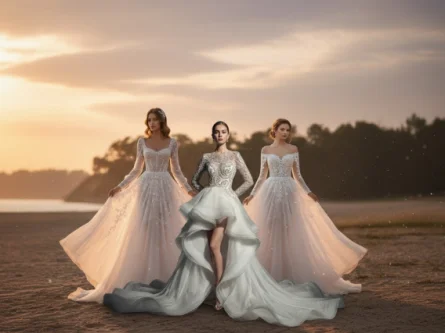
Insert the person into a beach scene with warm sunset lighting, gentle orange reflections on skin, soft long shadows on the sand, and natural blending with the horizon glow. | Copy |
|
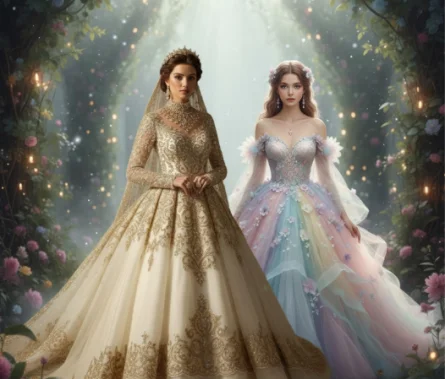
Place the person in a dreamy forest with diffused light rays, soft green highlights on skin and clothing, and gentle shadows cast from the trees to match the environment. | Copy |

|
Add the person to a neon cityscape. Include soft neon reflections on their face and clothes, match the city’s color intensity, and blend them into the ambient glow for a night-time effect | Copy |
|
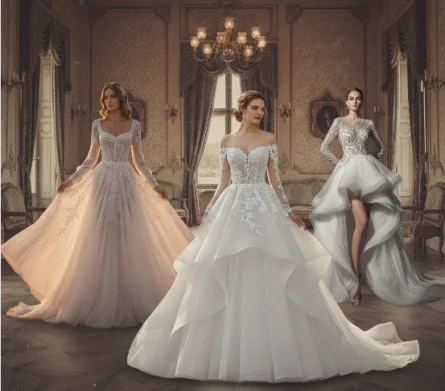
Merge the person into a vintage-style scene. Apply muted colors, light film grain, soft shadows, and retro tones to ensure the subject matches the vintage atmosphere. | Copy |
|
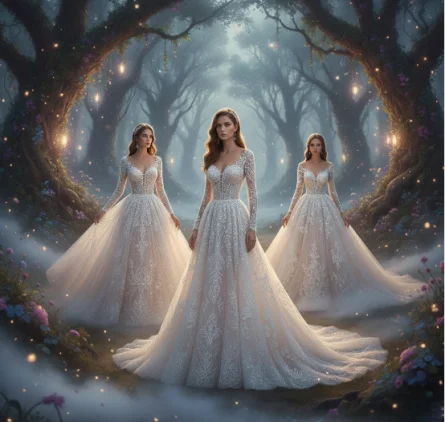
Place the person in a fantasy world with magical soft light, atmospheric fog around the edges, and gentle highlights that match the fantasy environment’s color palette.” | Copy |
How to Make Group Photos Look Better? Use Presets
Group photos can be tricky. Different lighting on each face, uneven skin tones, and mismatched colors often make the picture look dull or unbalanced. Instead of editing each person one by one, the quickest way to improve a group photo is by using presets.
Use PixPretty to make group photos look better and easier to edit. PixPretty automatically analyzes faces, colors, and lighting in your photo and applies professional-grade adjustments with one click. It saves time, removes manual editing, and keeps every person in the picture looking consistent.
How to Create Your Own Preset
Step 1: Edit the photo Adjust colors, portrait enhancements, and filters until you achieve the look you want.
-
Step Two: Import Cat Petting Material
Step 2: Click “Save New Preset” This button is at the bottom-right of the panel.

Step 3: Fill out the preset settings
- Preset Name
- Preset Category (or create a new one)
- Preset Type (Color, Portrait, or Composite)
- Filter Options (all selected by default)
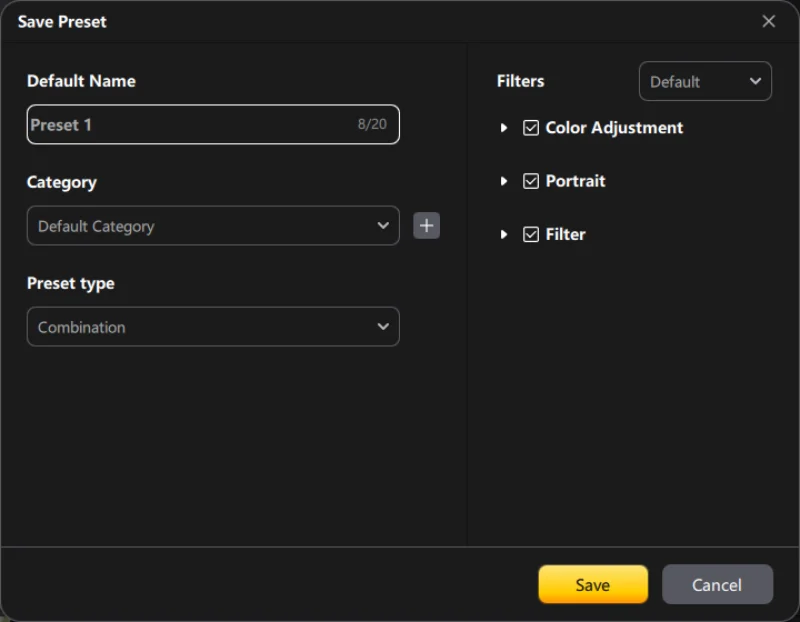
Step 4: Save and use Your preset will appear in the “My Presets” section. You can apply it to any group photo instantly. Hover your mouse over the preset, right-click, and select Rename or Delete.
-
Step Two: Import Cat Petting Material
Final Thoughts
Using the right add a person to a photo prompt makes the whole process easier and more natural. Clear prompts help match lighting, colors, and proportions so the added person blends smoothly into the scene. If you want the easiest option, try PixPretty AI. It does most of the work for you clean cutouts, smooth blending, and balanced colors all in just a few clicks. It’s a simple, user-friendly tool that helps you create clean, realistic photos with almost no effort.


